Branch Management
In the Getty Quire workflow, a new branch should be created for each major phase of digital/editorial work and review. Every project will include the following branches:
| Branch Name | Editorial/Design Phase |
|---|---|
first-pages |
create outline and add initial content, some features may still be in development and missing at this phase |
second-pages |
enter corrections from proofreader, clean-up functionality/appearance, add missing features |
final-pages |
enter minor corrections from final departmental review |
Additional branches should be created off of the three main branches mentioned above depending on the type of work that is being done.
See the Entering Changes with GitHub section of this documentation for best practices and further instruction.
Figures Submodule
As discussed in the Code Repository & Deploy Setup section of this guide, Getty Quire project repositories will often include a submodule repository for third-party licensed images. A particular process must be followed to make commits to a submodule repository.
For projects with submodules, you will be working in two different repositories in GitHub Desktop: the submoudule repo, and the main project repo. In the submodule repo, you will be making and pushing commits as normal. In the main project repo, you will be committing only a record that points to the particular version (based on the commit hash, or number) of the submodule repo you want to be using.
For example, when you first start work on a project, it might
be pointing to the ff10fc0 version of its
submodule repository. You go into that submodule and make a
series of changes and commits at the end of which, the most
recent commit is dc71d0d. You’d then go back to
the parent repository and make a single new commit that tells
it to point to that dc71d0d version of the
submodule, rather than the older ff10fc0 version.
(For more on how git submodules work, see
“Working with submodules”
on the GitHub blog.)
Here’s the step-by-step:
-
Navigate to the submodule repository in GitHub Desktop: The first time you go to make changes in a new project’s submodule, you’ll need to add that submodule as its own repository in GitHub Desktop. Go to File > Add Local Repository (Command+O), navigate to the
content/_assets/images/figuresdirectory in the main project, and select it as the repository to open. You should then see it in the list of other repositories in GitHub Desktop asproject-name-images, and you can navigate to it there in the future. -
Add files to the submodule repository on the
mainbranch: Before making any change to files in the submodule, make sure you’re on themainbranch and that it’s fully updated (fetched and pulled) from GitHub. It is common for the submodule to fall into a “detached head” state as a result of switching branches in the parent repository. Once in main, make and commit any changes as usual. Note that unlike all other repositories, in submodules we work strictly on themainbranch.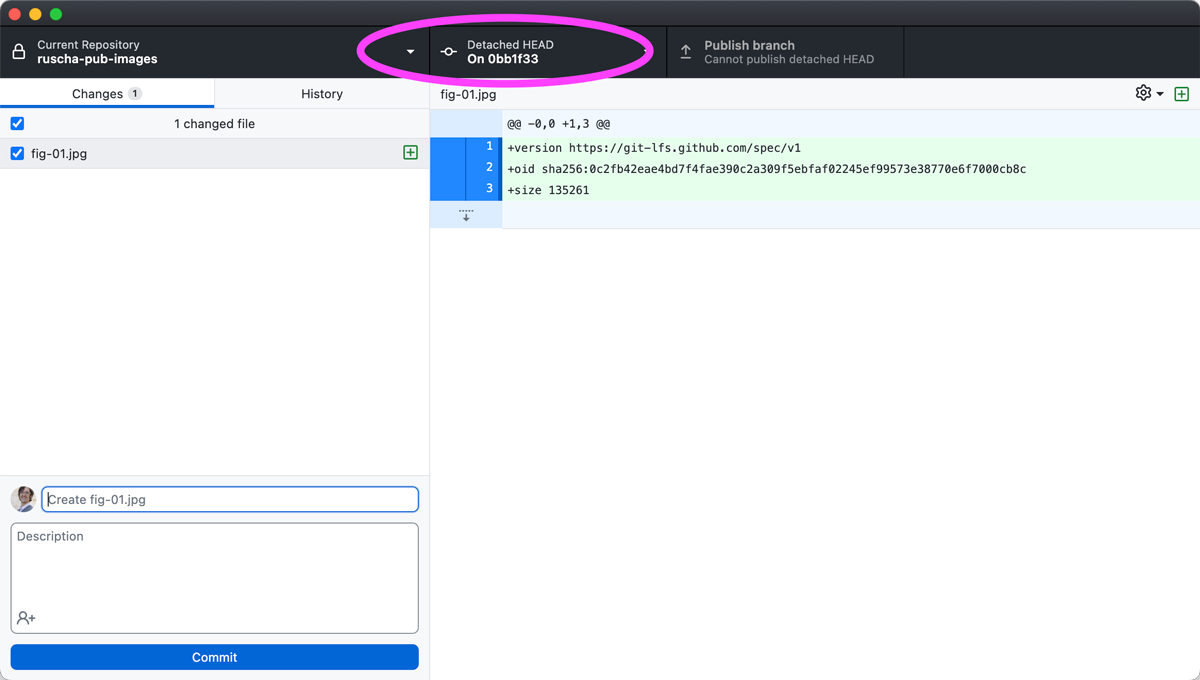
Watch out for the “Detached HEAD” 😱 submodule branch! This can happen from switching branches in the parent repository. Always be sure to switch back to the mainbranch before making changes. -
Immediately push changes to GitHub after making them: After making your batch of changes, push them to GitHub before navigating away from the submodule repo in GitHub Desktop. This ensures that when you commit the submodule change to the parent repository in the next step and then push it to GitHub, the matching commit will exist in the submodule repository there.
-
Commit the record of the submodule change to the parent repository: Navigate back to the parent repository in GitHub Desktop and it will show just a single change to the
content/_assets/images/figuresdirectory, not all the changes you may have made within it. The message will state that the submodule changed its commit from one hash to another. This change can now be committed like any other change (either on its own or with changes to other files) and pushed to GitHub as usual. Note that if you have untracked (uncommitted) changes in the submodule repo, you will not be able to commit the hash change at all.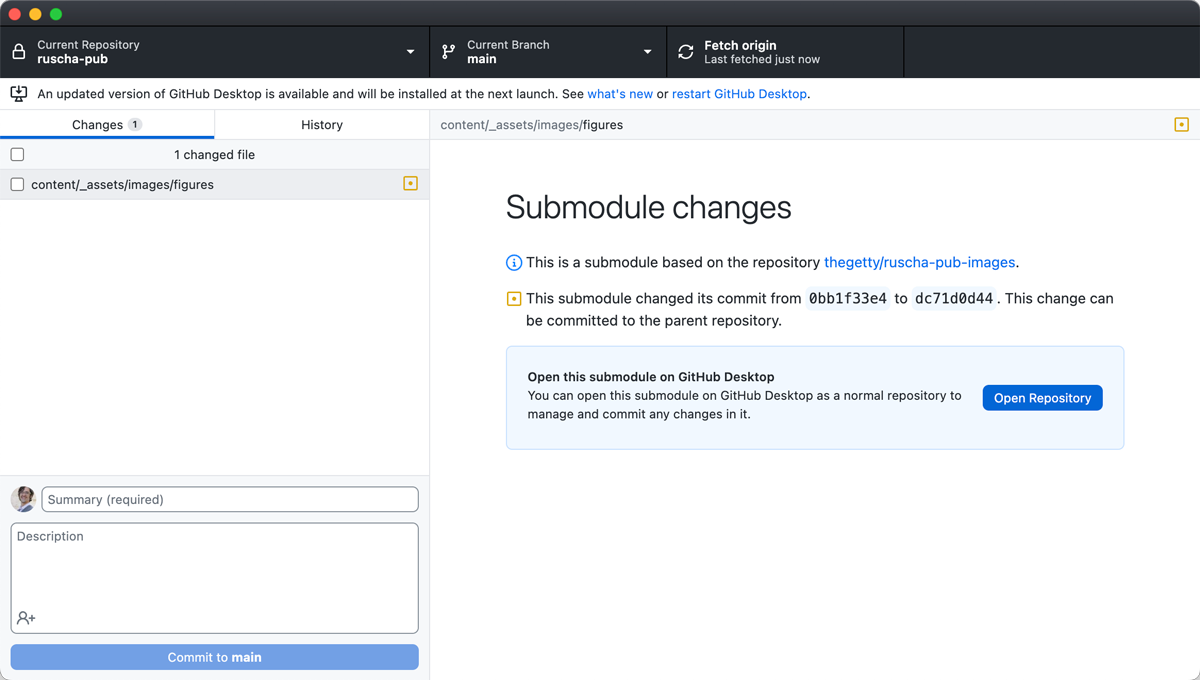
In the parent repository, the change you commit is simply to point to the newest version of the submodule based on the commit hash, rather than committing the changes to the files within the submodule.
Preview URLs and PDFs
As detailed in the “Repository and Deploy Setup” section of this guide, Quire sites are hosted on Netlify and a proxy URL is set up to direct users to the final publication URL. We also use Netlify to generate preview sites during each stage of the project’s development. These links are shared with the project editor, authors, proofreader, and others as needed, along with the PDFs.
For each primary stage the project’s development, Digital provides Editorial with a PDF of the full project, along with a preview link for review.
Any notes about the status of things in the draft should be clearly listed for the Editor in a memo. This would include notable organizational or design decisions that were made, open questions, known bugs, etc. Ongoing development tasks or bug should also always be included as individual GitHub Issues, and editors should be directed to those to check on their status as necessary.
Preview Sites and URLs
The preview URLs that are supplied to editors and authors during development will be specific to the development stage. These URLs will remain active and as first published throughout development so we can go back and refer to these stages as they were when they were first released.
https://first-pages--living-matter.netlify.app/
https://second-pages--living-matter.netlify.app/
https://final-pages--living-matter.netlify.app/
PDFs
PDFs for each stage should be output and provided to Editorial for proofing. The filenames should indicate the project name and stage:
living-matter--first-pages.pdf
living-matter--second-pages.pdf
PDFs should be kept on the department server, in the project’s “Cover and PDFs” folder, in the main Illustrations folder. They should not be committed to GitHub.
GitHub Releases
At each stage of a publication project, a GitHub Release should be created in order to capture a snapshot of the project at that moment. Any pre-publication release should be marked as a “Pre-release” in GitHub’s interface. The version numbers should be as follows:
| Version number | Project stage |
|---|---|
| 0.1.0-prototype | Any prototype work done prior to transmittal of the final files from Editorial |
| 0.1.0 | First pages |
| 0.1.1 | Any small changes made to first pages after it’s been delivered to Editorial. Subsequent changes would be v0.1.2, v0.1.3, etc. |
| 0.2.0 | Second pages |
| 0.3.0 | Final pages |
| 1.0.0 | First published edition, this release should be created on the pub date, not on approval of final pages |
| 1.0.1 | Unpublished revisions to the first edition |
| 1.1.0 | Published revisions to the first edition |
| 2.0.0 | Published second edition |
See our revisions policy for more information on when and how revisions may be made.
GitHub Issues
Rather than communicating questions or issues over Slack or email, it is best to keep all project-related correspondence centralized in one place. We use GitHub issues to track all outstanding work, bugs, and project-related questions.
On the main page of a project repository, you will see several tabs at the top of the screen. Look for the one called “Issues”.
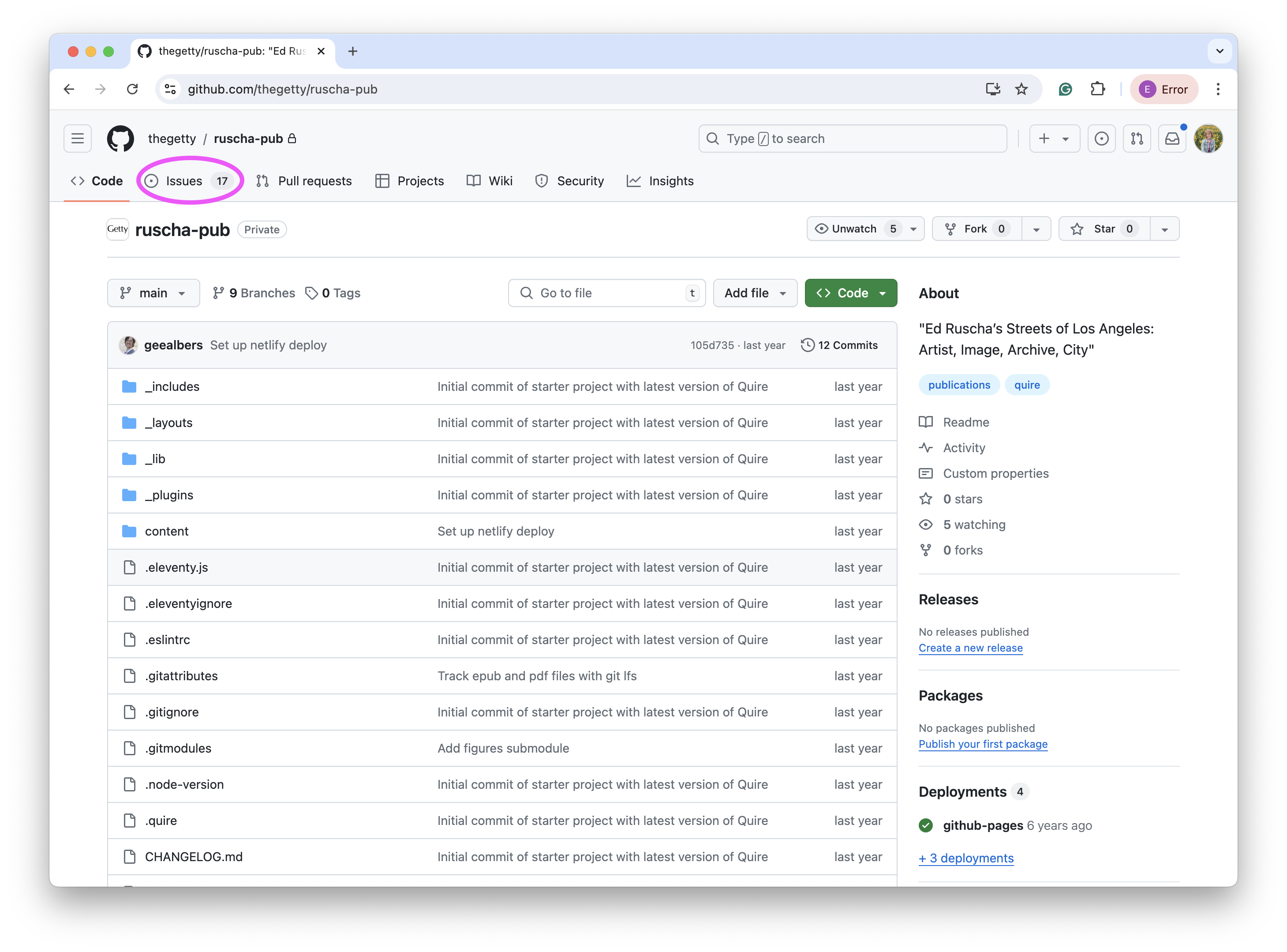
Click that tab and you will be brought to a screen that lists all currently open issues. Click the green button on the right called “New Issue” to open a new issue.
Issues should be opened for the following types of items:
- Outstanding items from the transmittal memo
- Bugs
- Editorial questions
- Items that need to be addressed later, such as technical issues or missing figures
Be as detailed as possible when creating an issue. Use
screenshots to illustrate what’s going on/wrong, when
referencing specific Markdown text, use code blocking
```. This will allow team members using the Find
feature to search more easily.
Each issue is assigned a number. These numbers should be referenced in both branch names and pull requests as they are addressed. When an issue is completed, close the issue and reference the related commit or pull request.
It is ideal to eventually get the editors comfortable reading and responding to GitHub issues but, for now, this is primarily a place to track work for the digital team.